
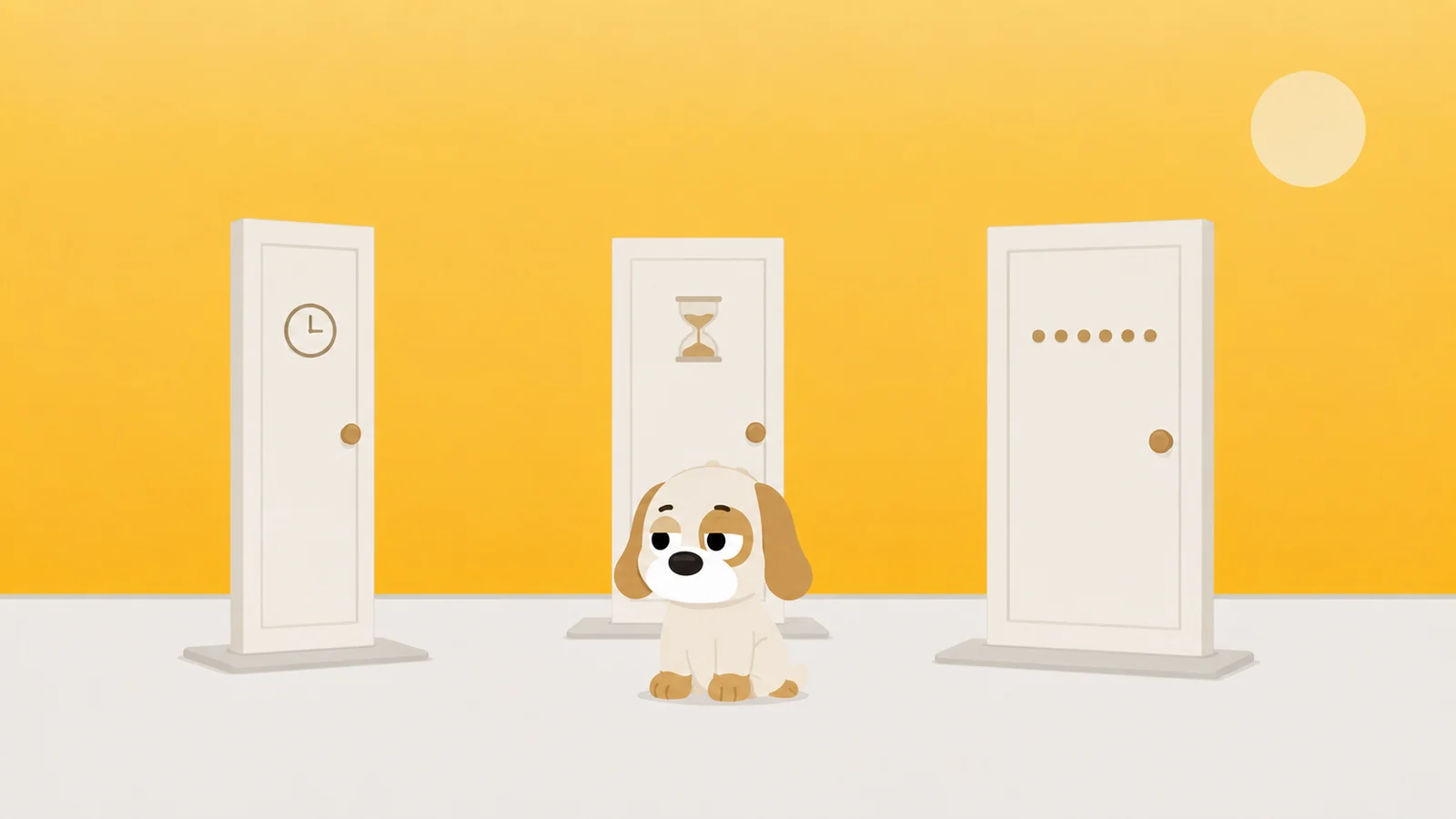
You are in Screen Time, looking at three rows, and they all sound the same.
They are not the same, and choosing wrong is the reason most people conclude after a fortnight that Screen Time does nothing. Downtime vs App Limits is really one question, and it is not about which one is stronger. It is about whether your bad hour has a clock time on it. If it does, you want a clock. If it does not, you want a budget. Everything below is that sentence at length, with the tap paths, for a limit you set on yourself.
Start with the third row, though, because it is quietly undoing your work and it takes twenty seconds to fix.
Four apps are already exempt and nobody mentioned it
Go to Settings, Screen Time, Always Allowed. Open it before you do anything else.
Phone, Messages, FaceTime and Maps are sitting in that list on a fresh iPhone. Apple put them there. They stay there until you take them out, and they walk straight past Downtime as if it were not on.
Which means that if you switched Downtime on at ten, spent forty minutes in Messages, and decided the feature was broken, the feature worked exactly as built. It had been told to let that one through, by a default you never saw.
Tap the red minus next to whichever of the four you do not genuinely need after ten at night. Keep Phone if you want to stay reachable, which is the entire reason they are separable. This one change makes the other two rows behave the way you assumed they already did.
You did not fail the test. Four of them turned up with a note from home.
Downtime is a clock, and it does not care what you did all day
Downtime shuts the door between two times you pick. Not on the apps you named: on everything, apart from phone calls and whatever is sitting in Always Allowed. It does not count minutes and it never has. Nine hours of TikTok before dinner has no effect on when Downtime starts.
Settings, Screen Time, Downtime. Turn on Scheduled, then choose Every Day, or Customize Days if your Tuesday and your Saturday are different problems. Five minutes before it begins the phone warns you, which is either courteous or a starting pistol depending on the week you are having.
Two things are worth knowing before you set it.
Dimmed is not blocked. Out of the box, an app caught by Downtime goes grey with a small hourglass on it, and still opens. The toggle that changes that is called Block at Downtime, and it only appears in that pane once a Screen Time passcode exists. Without the passcode there is no version of Downtime that actually stops you, only a version that looks disappointed.
There is a button under the schedule called Turn On Downtime Until Schedule. It starts Downtime right now and runs it into your next scheduled block. It is the most useful control in the pane and almost nobody finds it, because it only appears once Scheduled is on. Sunday afternoon goes sideways, you tap it, and the evening is decided before you get a vote.
Downtime is the right row for you if the bad time has a number on it. Eleven at night. Sunday before anyone else is awake. The first forty minutes at your desk.
Set it narrow. A window from 22:30 to 23:30 survives contact with a real life. From 22:00 to 07:00 does not, because one morning you will need something at six, and the whole thing comes off rather than gets adjusted.
A rule that fires at the wrong end of the day is a rule you switch off by Thursday.
The toggles that turn either limit into an actual wall, Block at Downtime and Block at End of Limit, do not exist until a Screen Time passcode does. Settings, Screen Time, Use Screen Time Passcode. Four digits you do not use anywhere else, so that muscle memory cannot type them for you at midnight.
App Limits is a budget, and the budget is shared
An App Limit is minutes per day on apps you name, and it has no opinion whatsoever about when you spend them. Spend the lot before breakfast and the door closes at nine in the morning.
Settings, Screen Time, App Limits, Add Limit. Tick whole categories, or open a category and tick individual apps inside it. Set hours and minutes, then Customize Days if the weekend needs a different number from the Wednesday.
Now the part that catches nearly everyone. One limit is one budget, shared across everything in it. Put Instagram, TikTok and Reddit inside a single thirty-minute limit and you have thirty minutes across all three, not thirty each. Ten minutes of Reddit comes out of Instagram's share.
If you want them counted separately, build three limits with one app in each. It is more taps once, and it is the only way to get the behaviour most people assumed they were getting the first time.
Thirty minutes across three apps is thirty minutes. Not ninety. People find this out at about ten past nine.
Overlaps behave the way you would guess, but it should be said out loud: an app sitting inside two limits is shut when either one runs out, and every minute you spend counts against both of them.
All of it resets at midnight, not at the hour you set it up, so a limit you build at 8pm on Monday has already spent Monday's allowance.
One newer thing. On iOS 26 an App Limit will accept zero minutes, which is an app closed with no allowance at all to spend. That is the closest Screen Time has ever come to the word never, and before iOS 26 the smallest you could set was one minute, which is why so many older guides tell you to set a one-minute limit and live with the strange thirty seconds you get.
App Limits is the right row for you if there is no hour to point at. The problem is four minutes, eleven times, between the bus and the bathroom and the meeting.
Always Allowed only ever subtracts
It is not a third kind of limit. It cannot make an app safer, quieter or smaller. The only thing it does is take an app out of the way of the other two.
Apple describes an allowed app as one that stays available even during Downtime, and even underneath a blanket All Apps & Categories limit. What it will not do is rescue an app from a limit you set on that app by name. Limit Instagram to twenty minutes and then also put Instagram in Always Allowed, and you have written two rules that disagree with each other. You should expect to be disappointed by whichever one wins.
The honest use is narrower and better than that. Always Allowed is the list that lets Downtime be strict. Maps for the drive home. The messaging app your job actually runs on. The banking app, because at some point you will need it at 11pm and hate everything. Four things.
Past four, Downtime has stopped being a schedule and become a mild suggestion, and the list grows exactly the way you would expect, one entirely reasonable exception at a time, always at night. Keeping it short is its own separate discipline, and it gets harder the more of your work lives in a chat app you cannot switch off.
Downtime vs App Limits, side by side
| Downtime | App Limits | Always Allowed | |
|---|---|---|---|
| What it is | A clock | A daily budget | An exemption list |
| What it acts on | Everything, except allowed apps and calls | Only the apps and categories you tick | The apps you add to it |
| What makes it fire | The time of day | Minutes used, whenever you used them | Nothing. It only lets things through. |
| Resets | At the end of your window | Midnight | Never |
| Needs the passcode for | Block at Downtime | Block at End of Limit | Editing the list at all |
| Pick it when | Your bad hour has a number on it | It is slivers, all day, no hour | Never on its own. It is a valve, not a rule. |
Pick by the shape of your bad hour
Three shapes, and almost everybody is one of them.
- The window. It happens at a time. Eleven at night, Sunday morning, the first stretch at the desk. Use Downtime, set it narrow, and turn on Block at Downtime. Then empty Always Allowed down to the things you would genuinely be stuck without.
- The drip. There is no hour. It is thirty checks of four seconds spread from breakfast to bed. Use App Limits, one limit per app so the budgets do not eat each other, and turn on Block at End of Limit.
- The one app. Your day is fine. One app is not, and you want it gone without deleting it and losing the account. Give that app alone an App Limit of zero minutes on iOS 26.
Do not set all three in one sitting. Pick the one that matches this week, give it seven days, and change nothing else. A phone covered in half-remembered rules is how people end up switching Screen Time off entirely, and that is a worse outcome than any of the three. When you do want the rest of it in order, there is a setup that survives you that goes through everything else in the right sequence.
What none of the three can count
There is one thing all three share, and it is not the passcode.
Screen Time has exactly two units. Minutes, and the time on the clock. That is the whole list. Nowhere in any of those panes can you write down the sentence that actually describes your problem, which for a lot of people is: I may open this app six times today, and the seventh is not happening.
Twenty-two opens of four seconds each is under two minutes of screen time. No App Limit will ever fire on that, because there is nothing to fire on. Downtime will not catch it either, because it is not happening at eleven at night, it is happening all day, in the gaps between things. At the end of the week the phone reports a healthy number and you know perfectly well it was not a healthy week.
The unit the settings do not have
Minutes measure how long you stayed. They do not measure how often you reached. Those are two different habits, and only one of them turns up in the weekly report.
Which is the long way round to admitting that we make an app about this, and that it ended up with exactly three rules, because we were standing where you are standing now. Quiet hours. A daily limit. An open limit. The first two are the clock and the budget you have just read about, roughly one to one. The third is the count iOS does not have.
Scrappy is a small dog who stands in front of the apps you name. He does not have your Screen Time passcode and does not want it. First knock, he is polite about it. Fourth knock, he is standing on the doorknob. Getting past him costs a treat, and treats come from walking, about two thousand steps for one, worth five minutes each. We do not sell them and we are never going to.
He has the same argument with an always-allowed list that Apple does, because it is still you who writes it. What he has instead of a passcode is a setting per app: negotiable takes a treat, firm makes you sit for ten seconds before he will even look at the treat, and absolute means he will not take it at all.
What he'd do
- Open Always Allowed and take out what you do not need at night. Twenty seconds, and it is very likely the reason the other two rows have not been working. Phone can stay if you want to be reachable.
- Pick one row, not three. Clock or budget, whichever matches this week, plus the passcode toggle that goes with it. Then leave the other two completely alone for seven days and see what actually changes.
- If you went with the budget, make one limit per app. A shared thirty is thirty, not thirty each. Finding that out on a Friday night is how a perfectly good rule gets deleted in a temper.
iOS has a clock and a budget. He also has a count.
Free to start, one whole rule, every safety rail. He does not know your passcode and does not want it.
Get Scrappy on the App StoreChecked against
- Apple's own Screen Time documentation for iOS 26, read on 26 August 2026: the Downtime, App Limits and Always Allowed panes, the default Always Allowed list of Phone, Messages, FaceTime and Maps, and the Block at Downtime and Block at End of Limit toggles that appear only once a Screen Time passcode is set.
- The zero-minute App Limit is new in iOS 26 and is documented in coverage of the release rather than spelled out inside the pane itself. It is the one line here we would still ask you to confirm on your own phone before relying on it.
- Every label quoted above is quoted exactly. The paths were checked against Apple's documentation and against the structure of the Screen Time panes, not walked handset in hand for this piece, which is a difference worth knowing about a guide that tells you where to tap.