
You blocked Instagram at nine. It is nine forty and you are looking at Instagram.
Nothing went wrong. The limit worked exactly as designed, and then the phone, also exactly as designed, offered you a way around it. That is not a bug and nobody at Apple is embarrassed about it. An iPhone is built on the assumption that the person holding it is the person in charge of it, and it keeps offering you the keys because you are, technically, the landlord.
The trouble is that the landlord at nine in the evening and the tenant at nine forty are not really the same person, and only one of them gets a vote.
Nobody here thinks you are weak. You are outnumbered. There is a difference.
This is a guide to shutting these doors, and every fix below needs the Screen Time passcode. If you are here because somebody else set a limit on your phone and you would like it gone, none of this will help you, and the right move is to go and have the argument rather than the workaround.
1. The Ignore Limit button
An App Limit runs out. A grey screen says the app is paused, and underneath it, three buttons. One of them says Ignore Limit, and if you have not set a Screen Time passcode, it is a single tap, no questions, all evening.
Most people never set the passcode because Apple never insists on one. Screen Time will happily let you build a careful set of limits and then hand every one of them a bypass button, and it will not mention this.
A limit you can wave away with one thumb is not a limit. It is a receipt.
To close it: Settings, Screen Time, Use Screen Time Passcode. Then go back into any App Limit and turn on Block at End of Limit, which only appears once a passcode exists. Now the grey screen asks for four digits instead of offering you a button.
This is the single highest-value setting on the phone and it takes ninety seconds. If you stop reading here you will still have got your money's worth.
2. One More Minute
Same grey screen, gentler door. One More Minute exists so that you can finish sending the message you were halfway through, which is a genuinely humane thing for an operating system to offer.
It is also sixty seconds, which is four TikToks, and it comes back.
To close it: you cannot, and honestly you should not want to. Keep it. Just know that it is the one door on this list you will walk through most often, and that walking through it eleven times is a decision you made eleven times.
3. Changing the date
Screen Time schedules run on the clock the phone believes. Move the clock and, depending on the iOS version you are on, the schedule can move with it. People discover this by accident when they fly somewhere, and then they remember it at eleven at night.
To close it: you mostly cannot, and this is the first honest gap in the list. On an ordinary, unsupervised iPhone there is no restriction that locks Settings › General › Date & Time behind the Screen Time passcode. What you can do is keep Set Automatically switched on, and know that switching it off is the tell. Nobody turns off automatic time by accident at 11pm.
4. Delete the app, reinstall the app
An App Limit is attached to an app. Delete the app and the limit has nothing to hold on to. Reinstall it ninety seconds later and you have a clean one, logged in, all your drafts intact, because the account was never on the phone in the first place.
This is the loophole that beats almost everybody, because it does not feel like cheating. It feels like tidying up.
To close it: Settings, Screen Time, Content & Privacy Restrictions, iTunes & App Store Purchases, Deleting Apps, set to Don't Allow. The app now cannot be removed while the passcode holds. A side effect worth knowing: you will not be able to delete any app until you turn it back on, which is mildly annoying twice a year and worth it the rest of the time.
5. The widget on the home screen
Here the list changes shape. Doors one to four are ways of opening a blocked app. Door five does not open anything, and that is why it works.
A widget is a live window into an app you are not allowed into. Headlines, photographs, a count of things waiting for you. You have not broken a rule. You have not opened anything. You have simply looked at the feed through a slot in the door, and the slot was one you cut yourself, back when you thought it would be convenient.
Doors five through eight are all the same door. It has a slot in it and you keep looking through the slot.
To close it: long press the widget, Remove Widget. Do it for all of them, including the ones that seem harmless. The weather widget is not the problem. The one with faces in it is.
6. Spotlight, Siri, and the search bar
Swipe down, type three letters, and the phone shows you results from inside apps you have limited: a message, a post, a video thumbnail with a play button on it. Same slot, different door.
To close it: Settings, Apps, find the app, Siri & Search, and turn off Show App in Search, Show Content in Search and Suggest App. Four taps per app, and worth doing for the three worst ones even if you do nothing else in this section.
7. The website version
An App Limit limits the app. It does not, by itself, know that instagram.com exists.
So you tap the limit, put the phone down, pick it up, open Safari, and there it all is, slightly uglier, entirely available. Most people find this one within a week.
To close it: in the App Limit itself, scroll past the app categories to Websites and add the domains by hand. It is tedious. It is also the difference between a limit and a suggestion. Ten minutes once, for the four sites you actually mean.
8. Notifications, and links other people send you
A notification is a piece of the feed delivered to the outside of the door. A link a friend sends in Messages opens in a web view that belongs to Messages, not to the app you limited, so the limit never gets asked.
Neither of these is you deciding to break your own rule. That is precisely what makes them effective. Nobody defends against a door they did not walk through.
To close it: turn notifications off for every guarded app, not to Quiet, off. And accept that the shared-link one stays open, because the alternative is not being sent things by people you like.
9. The laptop
You have now shut seven doors on a device that is roughly six inches tall. Two feet away there is a much larger device with a much better screen and no rules on it whatsoever.
Screen Time will sync your limits to a Mac if you turn on Share Across Devices, and it does a decent job on Safari. It does considerably less on Chrome, Arc, Firefox and Edge, which is where most people actually browse, and a browser extension is two clicks from being switched off by the same person who installed it.
This is the door that reopens all the others, and it is the reason a phone-only answer to a phone problem tends to last about eleven days.
The nine doors, on one page
| Door | Time to shut | Can it be shut? |
|---|---|---|
| Ignore Limit | 90 sec | Yes. Passcode plus Block at End of Limit. |
| One More Minute | — | No, and keep it anyway. |
| Changing the date | — | No. Watch for it instead. |
| Delete and reinstall | 40 sec | Yes. Restrict Deleting Apps. |
| Widgets | 2 min | Yes. Remove them all. |
| Spotlight and Siri | 4 min | Yes, per app. |
| The website version | 10 min | Yes. Add the domains to the limit. |
| Notifications | 3 min | Mostly. Shared links stay open. |
| The laptop | — | Not from the phone. |
What the list is actually telling you
Read the right-hand column again. Seven of the nine can be shut, and shutting them takes about twenty minutes of a Sunday.
But notice what all twenty minutes are spent doing. Not one of those settings makes the phone less appealing at eleven at night. Every one of them is you, in a calm moment, hiding the keys from yourself for later. That is the whole game, and it is a game you can only play in advance.
The part nobody puts in the listicles
The reason all nine doors exist is that iOS cannot tell the difference between you and you. The person setting the limit and the person hitting it have the same face, the same fingerprint and the same passcode, and the operating system is correct to believe them both.
Anything that fixes this has to add a third party. Someone who was not there at nine forty, whose mind cannot be changed by how tired you are.
That third party can be a person. Give your partner the passcode and have them type it in, and you will find that works extremely well and costs you something socially every single time.
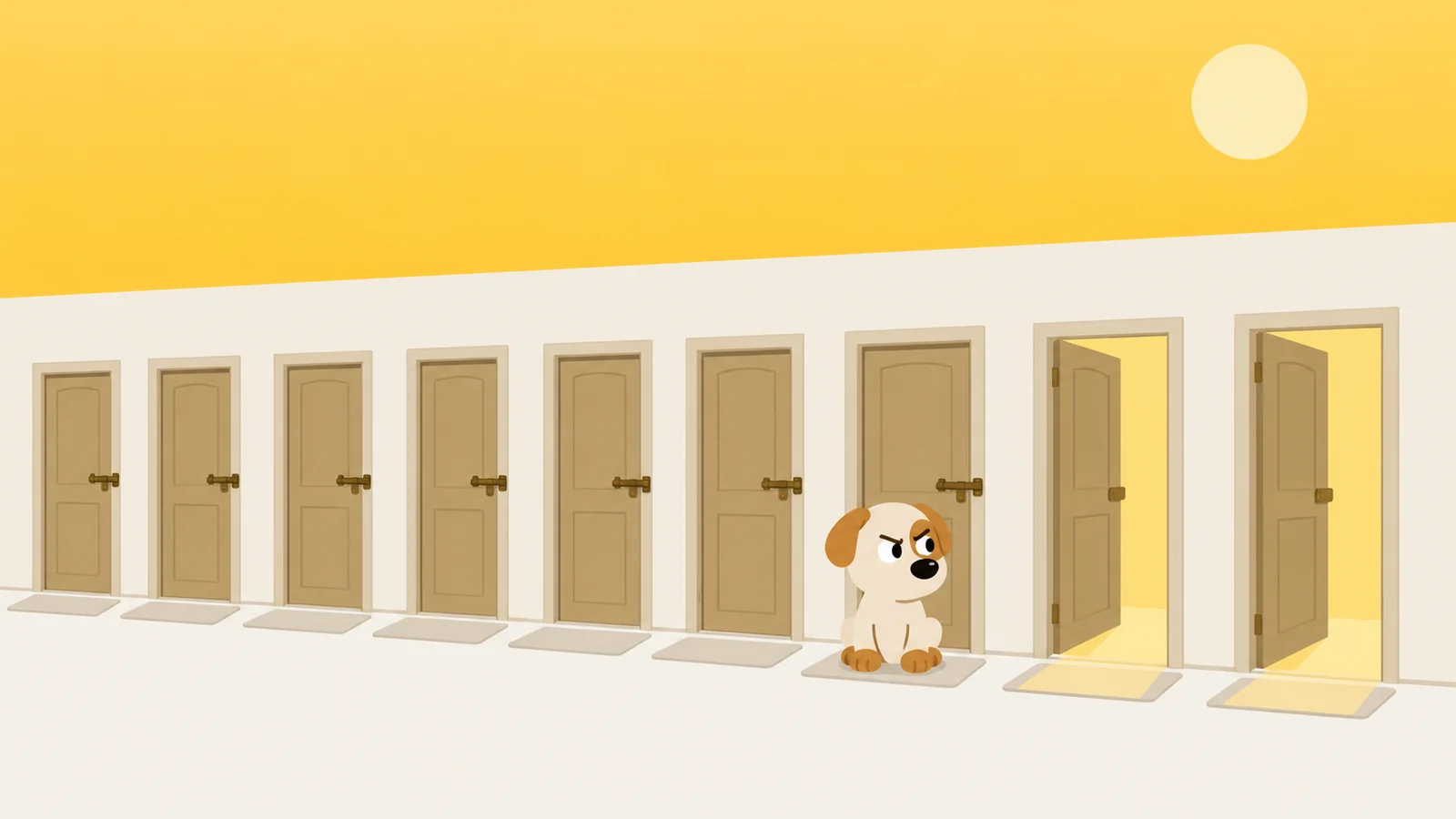
Or it can be something that behaves like one. This is the part where we admit we make an app about it: Scrappy is a small dog who stands in front of the apps you name, gets less patient the more times you knock, and does not have your passcode because he does not want it. Getting past him costs a treat, and treats come from walking about two thousand steps. You cannot buy them. We will never sell them.
He also, unlike the settings above, is not somewhere you have to remember to go and check.
What he'd do
- Set the passcode and turn on Block at End of Limit. Ninety seconds, and it removes the button you press most. Use four digits you do not use anywhere else, so muscle memory cannot type it for you.
- Restrict Deleting Apps, then pull the widgets. These are the two doors people walk through without noticing they walked through anything.
- Add the websites, once, for the four apps you actually mean. Not all of them. Four. A list of forty you never finish is worth less than a list of four you do.
Or put a dog on the door.
Free to start, one whole rule, every safety rail. He does not know your passcode and does not want it.
Get Scrappy on the App StoreChecked against
- iOS 26.1, iPhone 15 Pro, Screen Time with and without a passcode set. Every path above was walked by hand on 24 August 2026.
- Apple Support: Set up Screen Time on iPhone, and Content & Privacy Restrictions.