
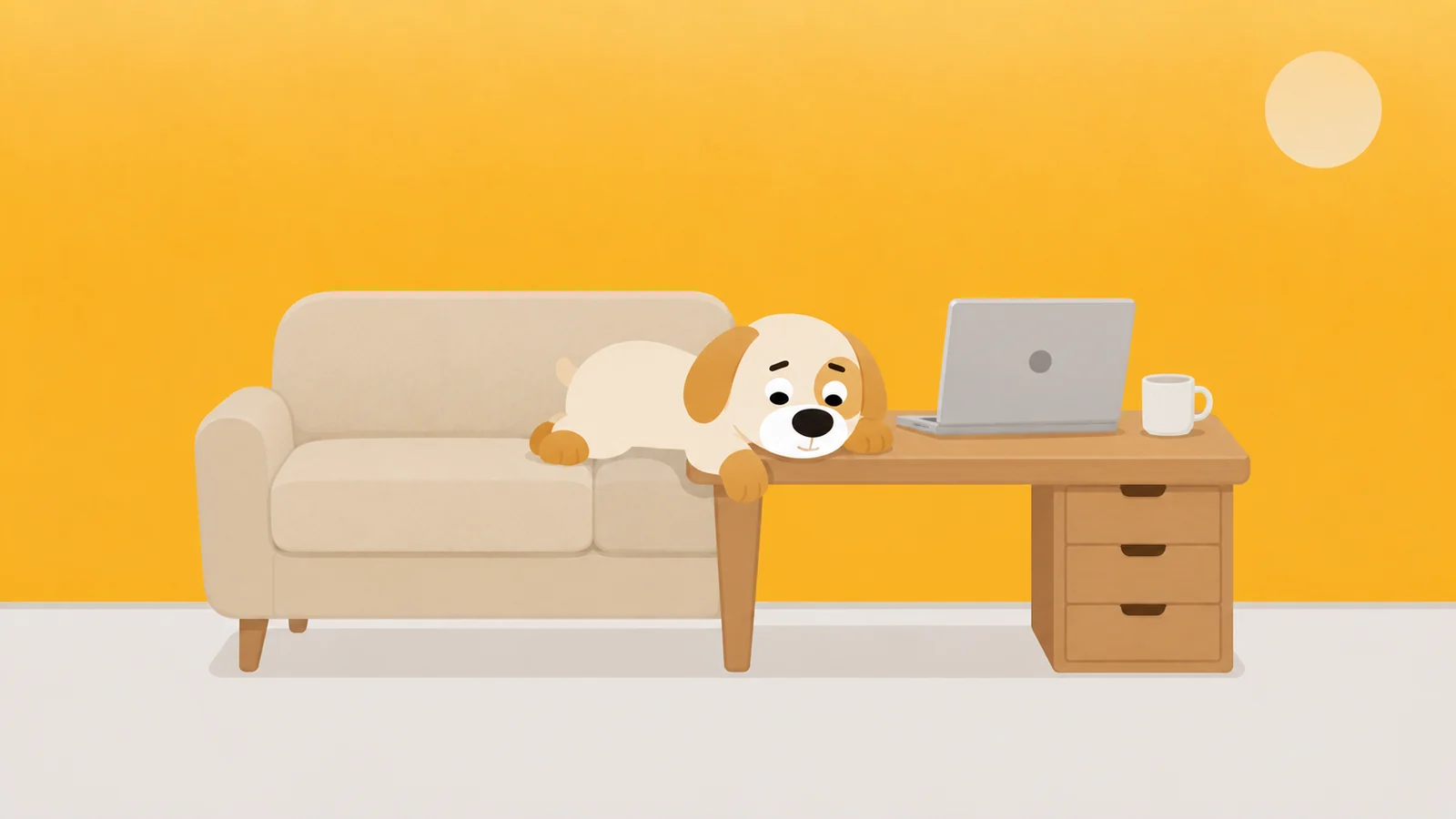
You made your phone stricter last month, and the working day did not get any longer.
Nothing broke. The rules held, the shields came up, the phone number went down and stayed down. The day simply refused to improve, and it took us an embarrassingly long time to work out why.
We make a screen time app for the iPhone, which is worth saying out loud before the rest of this. We ran it across our own working-from-home days and expected the hours it gave back to turn up as work. They turned up somewhere. It was not work.
Before anything else, do the measurement we should have done first and did not. Four minutes, and it is the only part of this article that is about you.
The four minutes that tell you whether you fixed anything
You want two figures covering the same seven days: what the phone did, and what the laptop did. The Mac will hand you both, on one screen, if you let it.
- Turn the Mac's reporting on. System Settings › Screen Time › App & Website Activity, then Turn On App & Website Activity. On a lot of Macs this has never been switched on, which means the machine has kept no record of anything and you have been assuming it was innocent. If that is you, this step is the whole four minutes and you come back in a week.
- Let the two machines talk. Same Screen Time panel, further down: Share across devices. It needs you signed in with the same Apple Account on both, and it is what allows one machine to report on the other.
- Set the window to a week, then change the device under it. Inside App & Website Activity there is a Date pop-up for a day or a week, and a Device pop-up for one device or All Devices. Choose a week. Choose your iPhone and write down what it comes to, then choose your Mac.
- Add them. That sum is your working-from-home day. Not the phone figure you have been quoting at yourself since January.
Two numbers, one week, same screen, no apps installed. Now the part we did not enjoy.
The number that went down was not the number that mattered
On our own machines the phone total dropped inside the first week, and it dropped hard. The Mac total went up. Not by precisely the same amount and not on the same days, but close enough that the two columns added together moved by minutes rather than by hours.
We had not saved an hour. We had rehoused one.
That is one desk over one fortnight, not a study. Which is why the four minutes sit above this paragraph rather than below it.
You did not fail. You changed screens. Those are not the same thing.
A laptop is a worse place to lose an hour than a phone is
Evenings have the same shape, which is why you block it on the phone and end up opening the laptop. At work the laptop is not optional, and that changes the arithmetic.
On a phone, leaving your work is a physical act. You put down the object with the work on it and pick up a different object. There is a moment, however small, in which you are visibly a person who has stopped.
A laptop gives you no such moment. The tab is the same size as the document, in the same window, in the same font, and from four feet away the two are identical. So is the feeling. Your hands are still on the keyboard exactly where they were at ten in the morning, and posture is most of what you use to tell whether you are working.
On a phone you have to leave the work to waste time. On a laptop you can waste it in the same window, in the same font.
That is why relocating the hour is worse than leaking it. Time lost on the phone is at least legible, to you and to anybody who walks past. Time lost in a browser tab reads as work, including to the person doing it, which means nothing ever prompts you to stop.
Screen Time can watch a Mac. It cannot see inside a browser.
The Mac column you just wrote down is bigger than you wanted, and it is also blurrier, and it is blurriest in exactly the direction of the problem.
Chrome is one row. Arc is one row. Firefox and Edge, one row each. Five hours of Chrome on a Tuesday is five hours of Chrome, and the report has nothing whatsoever to say about whether those hours were a spreadsheet or a forum, because Apple's website-level detail comes out of Safari and almost nobody does their job in Safari.
So the more of your day leaks through a browser, the more your Mac looks like somebody hard at work inside one very long application. The measurement flatters you in the same direction the habit does.
Five hours of Chrome. Not even the computer knows what was in it.
The commute was doing more work than anyone gave it credit for
An office day had edges on it, and two of them were journeys. In between, you sat in a room where other people could see your screen, on a machine that was not yours, and somebody walked behind you every few minutes.
Working from home removes all three at once and puts the sofa eleven feet from the desk. Most writing about home office distractions is about noise, chairs and a door that shuts. The real reason you cannot focus working from home is duller than that: the building used to hold the boundary for you, and now nothing does, and the machine you hold it with is the same machine you work on.
It is also why a day can contain nine hours at the desk and nothing finished, and why you never stopped working, you just stopped doing the work.
The tell is which machine you reach for when the work gets hard
Screen Time will show you this, and it is the most useful thing in it.
On the iPhone: Settings › Screen Time, then open the full report using the button under the chart, which reads See All App & Website Activity. Scroll past Notifications to Pickups, and underneath, First Used After Pickup.
Read only the working hours. If the same app is the first thing you open after four out of five pickups between nine and six, you have not learned anything about that app. You have learned that there is a particular ten minutes of your job you will do almost anything to avoid, and that it comes round most days at roughly the same time.
The Mac has the blunter version. Set the Date pop-up to a single day and you get bars by hour. Find the afternoon hour where the browser fattens, then go and look at what was open in the other window at that hour. It is nearly always the same document.
Fix that ten minutes and a startling amount of this goes away with no software at all. That is not a trick. It is just cheaper than everything else on the list.
Focus modes sync. On the iPhone, Settings › Focus, and at the bottom, Share Across Devices: set a work Focus on one machine and it comes on on the other. Worth doing, and worth being clear about. A Focus silences interruptions. It does not stand in front of anything, and nothing in it stops you opening the tab yourself, which by three in the afternoon is how it happens anyway.
We tried a browser extension, then we tried quitting the app
A browser extension went first, because it is what everyone tries first. It broke in two places. It guards one browser, and installing a second browser takes about ninety seconds. And it lives at chrome://extensions, two clicks from off, performed by the same hands that installed it, at the moment those hands are least on your side. Nobody remembers doing that as a triumph. They remember it as admin.
Quitting the app went second, and it broke for a duller reason. The app you most need to stop opening is frequently the one you are paid to answer, and a rule that costs you your job is not a rule you keep past Wednesday.
App Limits on the Mac are better than either of those, because they belong to the operating system rather than to a tab. Two things to know before you rely on them. Without Lock Screen Time Settings switched on in the same Screen Time panel, a limit on a Mac is a dialog you dismiss. And even locked, it still cannot see inside the browser, so the limit you would most like to set is precisely the one it cannot enforce.
The bit we got wrong
We assumed the phone was the problem and the laptop was where the problem was not. On a working-from-home day the two are a single machine with a gap in the middle, and the gap is where the hour goes. Guarding one end does not delete the hour. It hands the hour to the end you were not watching.
So a phone-only answer is not just incomplete. On a home office day it can leave you further from the work than you started, and feeling better about it.
What a fix has to cover, now that you have both columns
Two requirements fall straight out of the numbers, and neither is optional. It has to be on both machines, or it just moves the hour. And it cannot be something the person at three in the afternoon can switch off, because that person is extremely motivated, knows every password, and is you.
Which is where the dog comes in. Scrappy is a small dog who stands in front of the apps you name on an iPhone. He is polite the first time you knock and considerably less polite by the fourth, and the fourth is one word. He does not know your Screen Time passcode and does not want it, because he is not a settings screen. Getting past him costs a treat, treats come from walking about two thousand steps, and we do not sell them. We are never going to sell them. His affection cannot be bought, only walked for.
You can also hand him a block of the day as a walk: a named session, twenty-five minutes to eight hours, with a Live Activity on the lock screen showing what you are doing rather than what you are missing.
And then the honest part, which is most of why this article exists. He is on one of your two screens. The Mac app is not built yet. It is what we are working on, it will do on the laptop what he does on the phone, and until it ships a phone app is half an answer to a two-screen day. We would rather you got that from us now than found it out yourself in week two.
I can only be in one place at a time. I am working on it.
What the phone half is worth on a working day is this. It takes the easy leak away and makes the hard one visible. Guard the phone, watch the Mac column climb by the same hour, and you know something true about your day that you did not know on Monday, and it is a thing about the work rather than a thing about an app. That is not nothing. It is also not everything, and we are not going to pretend the difference.
What he'd do
- Get both numbers for the same week before changing anything else. Four minutes with the Device pop-up in App & Website Activity on the Mac. If the total is roughly what you feared, the phone was never the whole problem, and you have saved yourself a month of guarding the wrong machine.
- Read First Used After Pickup for the working hours, then go and look at the task. The app is the symptom. The ten minutes of your job you keep escaping is the thing, and it is usually the same ten minutes every day, at about the same time.
- Turn on Lock Screen Time Settings on the Mac. Almost nobody does. Until you do, every limit on that machine is a suggestion with a button on it, and the button gets pressed by somebody who is having a hard afternoon.
He can hold one of your two screens today.
Free to start, one whole rule, every safety rail. The Mac half is not shipped, and we are not going to pretend it is.
Get Scrappy on the App StoreChecked against
- macOS 26, System Settings, Screen Time. The labels quoted above (Turn On App & Website Activity, Share across devices, Lock Screen Time Settings, and the Date and Device pop-up menus inside App & Website Activity) were confirmed against Apple's own Mac Help pages on 26 August 2026.
- iOS 26, Settings, Screen Time. Pickups and First Used After Pickup sit inside the full report. The button that opens it has been renamed more than once across iOS versions, so it is described here by where it sits as well as by what it says.
- Not checked, and therefore not quoted: the exact wording of the dialog macOS shows when an App Limit runs out. The claim above is only that a limit without Lock Screen Time Settings can be dismissed by the person using the machine.
- The fortnight described in the second half is one desk and two machines, not a study. Every number worth trusting in this piece is one you generate yourself in the four minutes near the top.