
You have been reading about dumb phones for two weeks and the thing you keep snagging on is that you actually like the camera.
So here is the version where you keep it. A dumb phone is not one thing, it is a bundle of about six deprivations sold together, and five of them are switches already sitting in Settings on the phone in your hand. The sixth one, the part where the device genuinely cannot be argued with, is the only piece you cannot buy with an afternoon. We will get to that honestly at the end.
Budget ninety minutes. About twenty of it is switches. The rest is you looking at a screen full of numbers and deciding which apps get to survive.
Start with the number you are about to argue with
Do not skip this and do not do it from memory. Go to Settings > Screen Time > See All App & Website Activity, then tap the Week tab. Scroll down past the app list. Pickups and Notifications are down there, broken out by hour.
Write three things on actual paper: your top three apps by time, your pickups per day, and which hour has the tallest bar. Four minutes. Every decision for the rest of the afternoon gets easier once those three numbers exist outside your head, because you will otherwise spend an hour limiting an app you open twice a week while the real one sits there untouched.
The Day tab flatters you and the Week tab does not. Yesterday was unusual. Last week was not.
Turn the colour off before you touch anything else
This is the single change with the best ratio of effort to effect, and it takes ninety seconds.
- Open
Settings > Accessibility > Display & Text Size > Color Filters. Switch it on and choose the greyscale option. The whole phone goes flat and slightly sad, which is the point. - Now go to
Settings > Accessibility > Accessibility Shortcutand tick Color Filters. That binds greyscale to a triple-click of the side button. - Triple-click it twice, right now, to feel the toggle. Colour back on, colour back off.
The shortcut is what makes greyscale survive past Tuesday. Every previous attempt you have made at this failed at the moment you wanted to photograph something, or check whether the shirt was navy or black, and turning it off meant going back into Settings, and once you are in Settings you never turn it on again. Three clicks removes that whole failure.
Grey is not a punishment. It is the app being honest about how interesting it is.
A dumb phone screen is dark unless you press something
This is the deprivation nobody lists and the one you will feel most. Old phones did not light up when you picked them up off the table, so picking them up off the table did not start anything. Two switches, both off:
Settings > Display & Brightness > Raise to WakeSettings > Accessibility > Touch > Tap to Wake
Now the phone is a dark rectangle until you deliberately press the button. Give it two days before you judge it. The first afternoon feels broken and by Thursday you will notice you have stopped reaching for it while the kettle boils, because reaching for it no longer pays out.
While you are in that mood: Settings > Notifications > Scheduled Summary. Everything that is not a person gets bundled and delivered at times you choose. Two deliveries a day is plenty. Set the first one for after breakfast rather than before, so the first thing your morning contains is your morning.
Taking an app off the Home Screen is only half of hiding it
Decide your keep list first. A dumb phone with a camera is roughly: phone, messages, camera, maps, music, clock, wallet, and your banking app. Everything else comes off the Home Screen, which you do by pressing and holding an icon until things wobble and choosing to remove it from the Home Screen rather than delete it. The app is still installed, still logged in, still there when you genuinely need it.
Here is the part people miss, and it is why this trick keeps failing for them. The app you just hid is still one swipe-down-and-two-letters away, and search will start suggesting it before you have finished typing. So close that door too. For each app you hid, go to Settings > Apps > [the app] > Siri & Search and switch off Show App in Search, Show Content in Search and Suggest App.
That is roughly twenty seconds per app and it is the highest-value twenty seconds in this entire piece. Removing an app from the Home Screen without doing this converts a two-tap habit into a three-tap habit. Doing both means opening the thing requires you to want it by name, on purpose, which is exactly the amount of friction a dumb phone has.
The one thing to remember
Off the Home Screen and out of Search. Either one alone does almost nothing.
Downtime is the dumb phone's evening
Go to Settings > Screen Time > Downtime and set a window. Pick the honest one, not the aspirational one: if you are up until half past midnight, do not set it to ten. A window you break on night one teaches you that the window is decorative.
Then Settings > Screen Time > Always Allowed, which is the list of things Downtime does not touch. Keep it short and boring. Phone and Messages, so people can reach you. Maps, because the whole promise of doing this on an iPhone is that you can still find the restaurant at eleven at night in a city you do not know.
If you also use a Mac, Settings > Screen Time > Share Across Devices carries this over, and the Mac end lives in System Settings > Screen Time in the sidebar. One caution: over there, Chrome, Arc, Firefox and Edge each count as a single app row, since the website-level detail comes from Safari.
Limits are where the afternoon stops being tidy
Now Settings > Screen Time > App Limits > Add Limit, using the three apps you wrote on paper. Limit those three. Not twelve. Twelve limits is a system you will dismantle in a fortnight.
Four things about limits that nobody tells you before you spend an evening building them:
- A limit does not cover the website version unless you add the domain in the Websites field inside that limit. Otherwise the app goes quiet and the browser tab picks up exactly where it left off.
- Widgets, Spotlight results and notification previews all show you content from a limited app without opening it, and none of them trips the limit. If you kept a widget for the app you just limited, you did not limit it, you reformatted it.
- Deleting the app detaches its limit. Reinstalling gives you a clean one. You can close that with
Settings > Screen Time > Content & Privacy Restrictions > iTunes & App Store Purchases > Deleting Apps > Don't Allow. - Block at End of Limit only appears once a Screen Time passcode exists. Without one, the screen you hit at the end of your limit offers Ignore Limit For Today. One tap, no friction, no ceremony.
So set the passcode: Settings > Screen Time > Use Screen Time Passcode, which is relabelled Lock Screen Time Settings once one exists. Use four digits that are not your unlock code. Attach a recovery email when it asks, because Settings > Screen Time > Change Screen Time Passcode > Forgot Passcode is a genuinely useful door and you want it to work at eleven at night when you have forgotten.
Even then, the limit screen still offers One More Minute and Remind Me in 15 Minutes, and behind the blocked screen there is a passcode field, and you know the passcode. That is the shape of the whole thing.
Ignore Limit For Today. One tap. I have watched that tap happen more times than I have had walks.
What is left over when the settings run out
Take stock, because you have done well. The phone is grey. It does not light up when you pick it up. Nine tenths of the apps are off the Home Screen and out of search. Notifications arrive twice a day in a batch. Evenings are quiet, and the camera, the maps and the group chat all still work. That is most of a dumb phone, for free, in an afternoon.
The remaining gap is small and specific: nothing here can say no to you. Every wall you built this afternoon has a door in it, and you are holding the key, and at half past eleven on a Tuesday you will use it. That is not a character flaw, it is arithmetic. A four digit code you chose is not an obstacle to the person who chose it.
A dumb phone works because it cannot be talked round. Your iPhone can always be talked round, by you, in about four seconds.
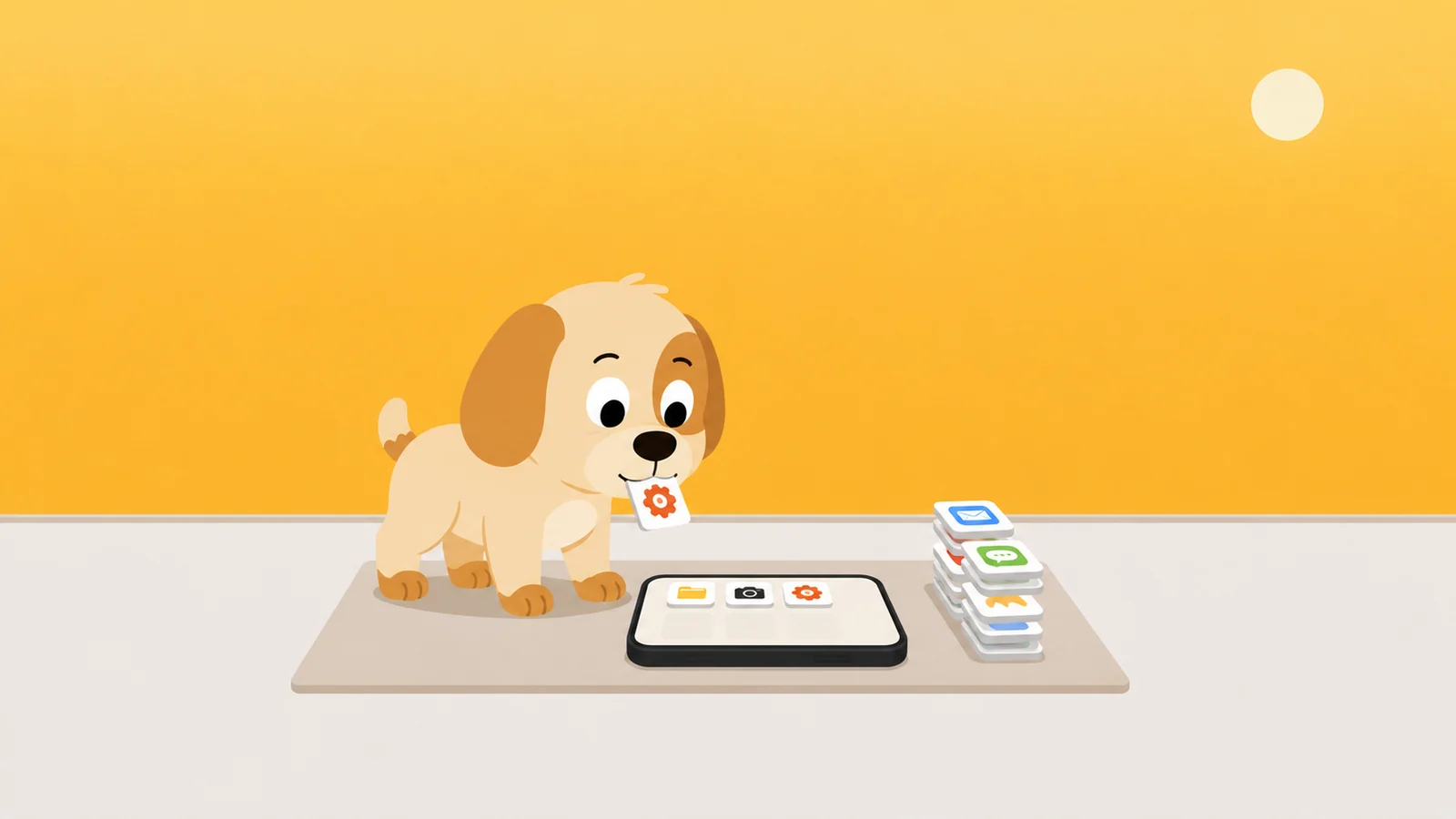
Which is roughly why Scrappy exists. He is a small scruffy dog who sits on top of exactly three rules: quiet hours, a daily limit, and a limit on how long one opening lasts. Go past one and he appears, and he escalates: polite, then surprised, then firm, then a flat "No." He is not a wall either. He is matched to the actual problem, which is that those last four seconds need to be socially expensive rather than technically impossible.
The parts that matter: five more minutes costs a treat, and treats are earned by walking, roughly two thousand steps for one. They are never sold, and never will be. Each app gets a resistance setting, so a negotiable app costs a treat, a firm one makes you sit ten seconds first, and an absolute one means he will not take the treat at all. Removal lock closes the delete-and-reinstall loophole, and switching it off takes a day, deliberately longer than an urge lasts. One emergency pass a month, no scolding. No account, no sign-up, no server of ours. The free tier is one whole uncrippled rule plus every safety rail.
You do not need a worse phone. You need a phone that says no about four times a day, and means it.
What he'd do
- Do the Week tab in
See All App & Website Activitybefore anything else, and write the pickups number on paper. Ninety minutes of settings aimed at the wrong app is ninety minutes gone. - Bind greyscale to the triple-click. Colour is the thing you will need back for two minutes a day, and a shortcut is the only version of this that survives the first time you want to photograph something.
- Limit three apps, not twelve, and add the website domain inside each limit. A short system you keep beats a thorough one you dismantle on the second Sunday.
Checked against
- Every Settings path above comes from Scrappy's internal verified reference file, where each one was previously checked against Apple's own documentation by other writers on this site. Screen Time, App Limits, Downtime, Always Allowed and Content & Privacy Restrictions paths are corroborated across many articles; Color Filters, Accessibility Shortcut, Raise to Wake, Tap to Wake, Scheduled Summary, Share Across Devices and the per-app Siri & Search switches are single-source in that file and worded with a little slack for that reason.
- The behaviours described around limits (Block at End of Limit requiring a passcode, Ignore Limit For Today, One More Minute, the Websites field, widgets and Spotlight not tripping a limit, deleting an app detaching its limit, and how Screen Time on a Mac treats non-Safari browsers) are positions this site has tested and stands behind, taken from the same reference.
- Home Screen removal is described as a gesture rather than a Settings path because no verified path for it exists in that file. Current as of iOS 26. If Apple moves something, the shape of the argument survives the move.
Or put a dog on the door.
Free to start, one whole rule, every safety rail. He does not know your passcode and does not want it.
Get Scrappy on the App Store