
You blocked everything except Slack, and you have been in Slack since ten.
That is not a willpower failure, it is a shape problem. Downtime works by shutting the phone and then handing back exceptions, so the exceptions list is the only place your job is allowed to live. A list with your job in it grows. It keeps growing until it stops meaning anything, and then you conclude that Screen Time does not work on you.
Before anything else, one fact that quietly ruins a lot of setups. Always Allowed is much narrower than it looks. Apple's own description of it names two jobs and no others: it covers Downtime, and it covers the single App Limit called All Apps & Categories. That is the whole of what it reaches.
So if you put Slack in Always Allowed and also gave Slack its own two-hour App Limit, the limit still fires at two in the afternoon and Slack still goes grey. Nothing is broken. You have two rules, both doing exactly what you asked, and only one of them was told about the other.
Nothing is broken. Two rules are both doing their job. Somehow that is worse.
This is written for a phone you own, where you set the limits on yourself. If your phone is managed by your employer, some of the settings below will be locked and will say so, and the right move is a conversation with whoever runs your devices rather than a workaround.
The list is long because every single thing on it was added for a good reason
It starts short. Then a shield catches you in a car park with Maps open, so Maps goes on. Then the authenticator, because without it you cannot log into anything. Then the parking app, the bank, the airline, the one your kid's nursery uses, the one that opens the door at the office.
Every one of those took four seconds and every one of them was correct at the time. What nobody ever does is the other half. Nobody opens Always Allowed on a calm Sunday morning and takes something off. So the list only ever travels in one direction, and two months later you have a Downtime schedule with nineteen holes cut in it.
An always-allowed list is a list of the apps you have decided you cannot govern.
The test is whether you can name the person
Here is the rule that makes cutting it possible, because asking yourself "do I need this" will let everything through. An app earns a place on the list only if you can name a specific human being who is materially worse off within the hour if they cannot reach you through it. Not a role. Not a possibility. A name.
Try it on Slack. At eleven in the morning it passes easily: your manager, the client, the person waiting on the file you said you would send. At eleven at night, for most jobs, the honest answer is nobody. That is not a permissions problem and it does not get solved by adding or removing Slack from a list. It is a schedule problem, and it gets fixed in step four.
Run everything currently on your list through that test and almost everyone lands in the same place. Phone. Messages. The one app the job actually runs on. And one wildcard that is genuinely yours: Maps if you drive, or the bank, or the authenticator, or the childcare app. Four.
If the name you come up with is "someone might", that is not a person. That is a feeling wearing a lanyard.
Twenty minutes, in this order
- Write the four on paper before you unlock the phone. Three minutes. Choosing inside Settings means choosing while looking at a scrolling list of every app you own, which is exactly how the list got long. Four names, on paper, first. If a fifth is genuinely load-bearing, write five and notice that you wrote five.
- Count what is on the list now, then cut it. One minute. Settings, Screen Time, Always Allowed. However many apps are sitting in that allowed section is the number of exceptions your evenings currently run on. Tap the red minus on everything that is not on your paper. Nothing you remove here gets blocked. It only means Downtime now applies to it, which was the entire idea.
- Give Downtime hours you have actually kept. Four minutes. Settings, Screen Time, Downtime, switch on Scheduled, then use Customize Days, because Tuesday and Saturday are not the same evening. Pick a start time you have really stopped working at in the past fortnight, not the one you wish were true. Downtime that starts at six on a job that finishes at half past seven gets ignored on day two and then forever. While you are in there, if you have a Screen Time passcode set, turn on Block at Downtime. Without a passcode the grey screen is a suggestion, and the three mechanisms behave differently enough that it is worth knowing which one is actually holding your evening together.
- Fix Slack inside Slack. Five minutes. This is the step people skip and the one that does the work. Slack is on your allowed list now, so iOS will never stop it. Slack can. In the phone app, open You, then Notifications, and set a notification schedule for the hours you actually work: outside them Slack keeps receiving and stops pushing. Then go to Settings, Notifications, Slack, and turn Badges off. A badge is not a notification. It is a number that follows you around the home screen all evening, and it is the thing that opens Slack at twenty to eleven.
- Give the apps that did not make the cut a limit you will not break on day one. Four minutes. Settings, Screen Time, App Limits, Add Limit. Before you type a number, go and look at the real one: Settings, Screen Time, See All App & Website Activity. Set the limit a little under last week's actual figure rather than a third of it. A limit you blow straight through on the first evening teaches you that limits do not hold, and that is an expensive thing to teach yourself.
- Test it at the wrong time. Two minutes. Set Downtime to start five minutes from now. Wait. Then try to open one app from your four and one from everything else, and watch what the grey screen actually offers you. Put the schedule back afterwards. Two minutes, and it is the only way to find out tonight, in daylight, whether the thing you just built is real. Almost nobody does this. Almost everybody who does finds something.
What that fixes, and the one thing it does not
You now have four exceptions instead of nineteen, a Downtime that begins when you genuinely stop, and a Slack that goes quiet at the right hour. That is most of the value on this page and it costs nothing.
It does not fix the thing in the headline. After all six steps Slack is still allowed, all day, and Slack is still the app you open forty times between two and six. Every tool Screen Time owns is a clock. App Limits are minutes. Downtime is hours. There is nothing anywhere in it that counts how many times you opened something.
If you have already tried a Focus for this, you hit the same wall from a different side. Settings, Focus, Work will hold the notifications and hide the badge, and it will not stop your thumb, because a Focus silences apps and does not shut them. That is roughly why the ninth focus setup came apart on day nine, and the tenth will too if it is built out of the same part.
The number Screen Time cannot count
Two hours in Slack is a Tuesday. Forty trips to Slack is also two hours, and it is not a Tuesday, it is a day you will not be able to describe afterwards. For an app you have to keep, the count is the only number that says anything true about the problem.
Which means anything that actually helps has to count openings rather than minutes, and it has to do that without shutting the app your salary comes out of.
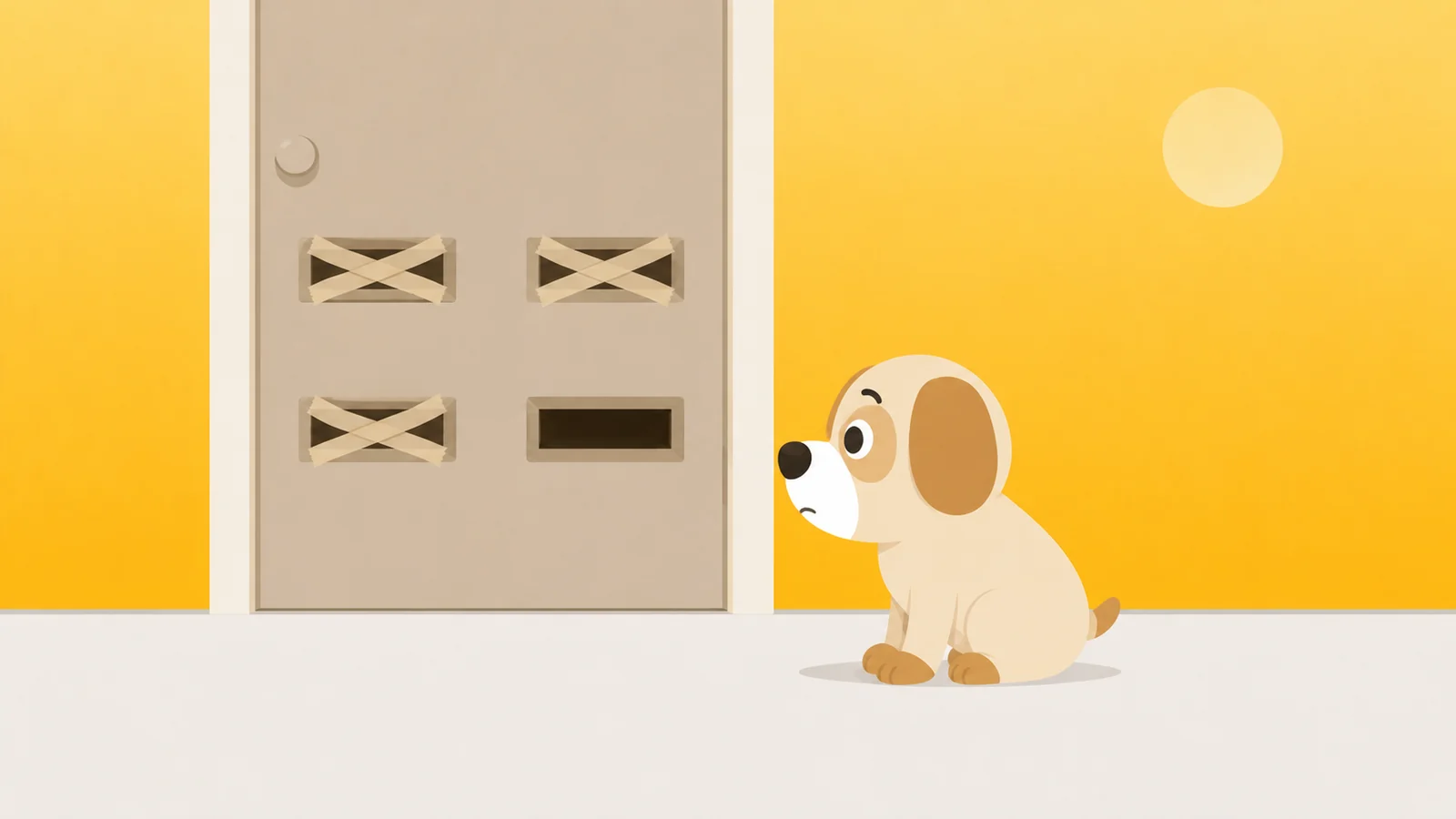
That is the shape we built for, so this is the paragraph where we own up to making an app. Scrappy is a small dog who stands in front of the apps you hand him. He knows three rules and refuses to learn a fourth: quiet hours, a daily limit, and an open limit. The third one is what this whole article has been walking towards. Six looks a day, and Slack is open and ordinary the rest of the time.
He also runs the opposite way round from Downtime. Downtime shuts the phone and you cut exceptions into it. Scrappy guards only what you name, so everything else is simply your phone, unbothered, and the allowed list stays short because nothing is leaning on it. There is one in his settings for the stragglers. It will let you exempt an app or a website, and it flatly will not let you exempt a whole category, because that is not an exception. That is cancelling the rule and calling it an exception.
Slack, if you keep it, gets a resistance level. Negotiable means one treat opens it. Firm means you sit for ten seconds first, which is long enough to notice you did not really want it. Absolute means he will not take the treat at all. Slack is a negotiable app for most people and Instagram usually is not. Treats come out of real life: roughly two thousand steps of walking earns one, and one buys five honest minutes. They are not for sale and they never will be.
For a real block of work there is a walk, which is a named session from twenty five minutes to eight hours with a Live Activity on the lock screen so you can see it running. There is an emergency pass, once a month, no scolding, because sooner or later there is a boarding pass behind a door. And there is no account, no sign-up and no server of ours, which matters more than usual on a phone carrying your employer's Slack: your Screen Time is drawn by a sandboxed Apple extension that cannot phone home.
One thing he cannot do yet. Slack on a Mac is not something he can stand in front of, because the Mac app has not shipped. It is being built, it will run the same three rules, and until it lands the desk half of this stays yours to solve, which is the part of working from home that quietly undoes the rest.
What he'd do
- Count your always-allowed list tonight, before you change anything else. Settings, Screen Time, Always Allowed. Read the names out loud. Anything you cannot attach a person to comes off. One minute, and it is the whole article if you only do one thing.
- Give Slack a notification schedule that ends when your day ends. Then leave the app allowed. It was never the app. It was the pushing.
- Set Downtime to start five minutes from now and go and knock on it. Two minutes, and you find out tonight whether any of what you built is holding, rather than at eleven o'clock on a Thursday.
Or name the four he guards, and stop making exceptions.
Free to start, one whole rule, every safety rail. Treats are earned by walking and are never sold.
Get Scrappy on the App StoreChecked against
- Apple's Screen Time documentation for iPhone, including the description of Always Allowed that scopes it to Downtime and to the All Apps & Categories limit. Read 26 August 2026.
- Settings paths above are iOS 26 as shipped, checked against Apple's documented layout rather than re-walked screen by screen for this piece. Block at Downtime only appears once a Screen Time passcode exists, which is why step three says so.
- That Screen Time has no launch-count limit is a claim about absence: App Limits are set in minutes per day and Downtime in hours, and there is no third control anywhere in Screen Time that counts openings.
- Slack's menu labels move between releases. If You then Notifications on your build does not show a notification schedule, it is in the same app's notification preferences, and it is the same setting.